

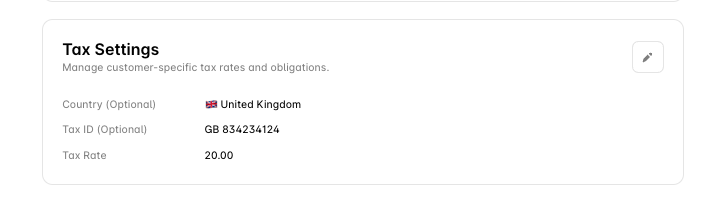
Tax settings
These fields are set in the dashboard and returned on
GET /customers/{id}. They are not writable through POST /customers or PATCH /customers/{id}.
Configure in the dashboard
- Go to Customers → [Customer] and open Tax settings.
- Set the tax country and enter the tax ID if the customer has one.
- Set the tax rate as a percentage, or leave it at 0.00% if a tax engine determines it.
- Choose the tax reason and tax type.
- Save.
Tax reasons
The reason is recorded against the invoice line, so an invoice under reverse charge shows zero tax with
reverse_charge as the reason.
EU VAT reverse charge
Reverse charge is applied by a tax rule, not detected automatically. With Alguna Tax, create a rule for the customer’s country at 0% with the taxability reason set to Reverse charge, and record the customer’s VAT ID on their profile. With an external provider, the provider determines the treatment and Alguna records what it returns.How the rate reaches the invoice
- The customer’s billing address and tax country give the location.
- If Alguna Tax is on, the matching rule for that location (and the selling legal entity) sets the rate and reason. If an external provider is on, the provider does. Otherwise the customer’s tax rate applies.
- Product-level
tax_codeon each product tells a tax engine how to classify the line. - Tax is added on top of the line subtotal on the invoice:
Troubleshooting
Tax not calculating — the customer needs a billing address with a country (and a tax country if it differs); check a tax rule exists for that location or that the provider is connected; check the product is not mapped to an exempt tax code. Wrong rate — check the customer-level rate is not overriding what you expect, and that the legal entity billing this customer has the right rules. Reverse charge not applying — confirm the rule for the customer’s country is set to reverse charge at 0%, the customer’s tax country matches it, and a tax ID is recorded.Next steps
Alguna Tax
Rules per legal entity and jurisdiction.
External Tax Providers
Let a provider determine tax.
Manage Customers
The profile these settings live on.
Customer Contacts
Who receives the invoice.