

customer_id, a currency, and your own line_items, and it follows the same lifecycle as every other invoice. Use this page for the create → edit → issue → void operations on an invoice. For subscription-generated invoices see Recurring Invoices; for delivery and payment collection see Invoicing Customers.
Create via API
POST /invoices creates the invoice and its line items in one call. See Create an invoice.
Request fields
unit_price excludes tax; tax is calculated on top of it by Alguna Tax or your external provider. Payment terms, numbering, and the default memo are organization settings, not request fields — the due date is derived from the configured terms. See Invoicing Configuration.
Issue on create
Invoices default todraft. Send "status": "issued" to release the invoice in the same call. Issuance is asynchronous: the response comes back in processing and settles to issued shortly after. Poll GET /invoices/{id} or listen for the invoice.issued webhook.
Issue from a tax calculation
When you have already priced and taxed a basket withPOST /tax/calculations — for example in your own checkout — pass its tax_calculation_id instead of line_items and currency. The stored line items, tax amounts, and buyer become the invoice, which is issued synchronously. Add "status": "paid" and a payment object (source, optional reference, paid_at, note) to record an already-settled payment in the same call. See Tax.
Create via dashboard
1
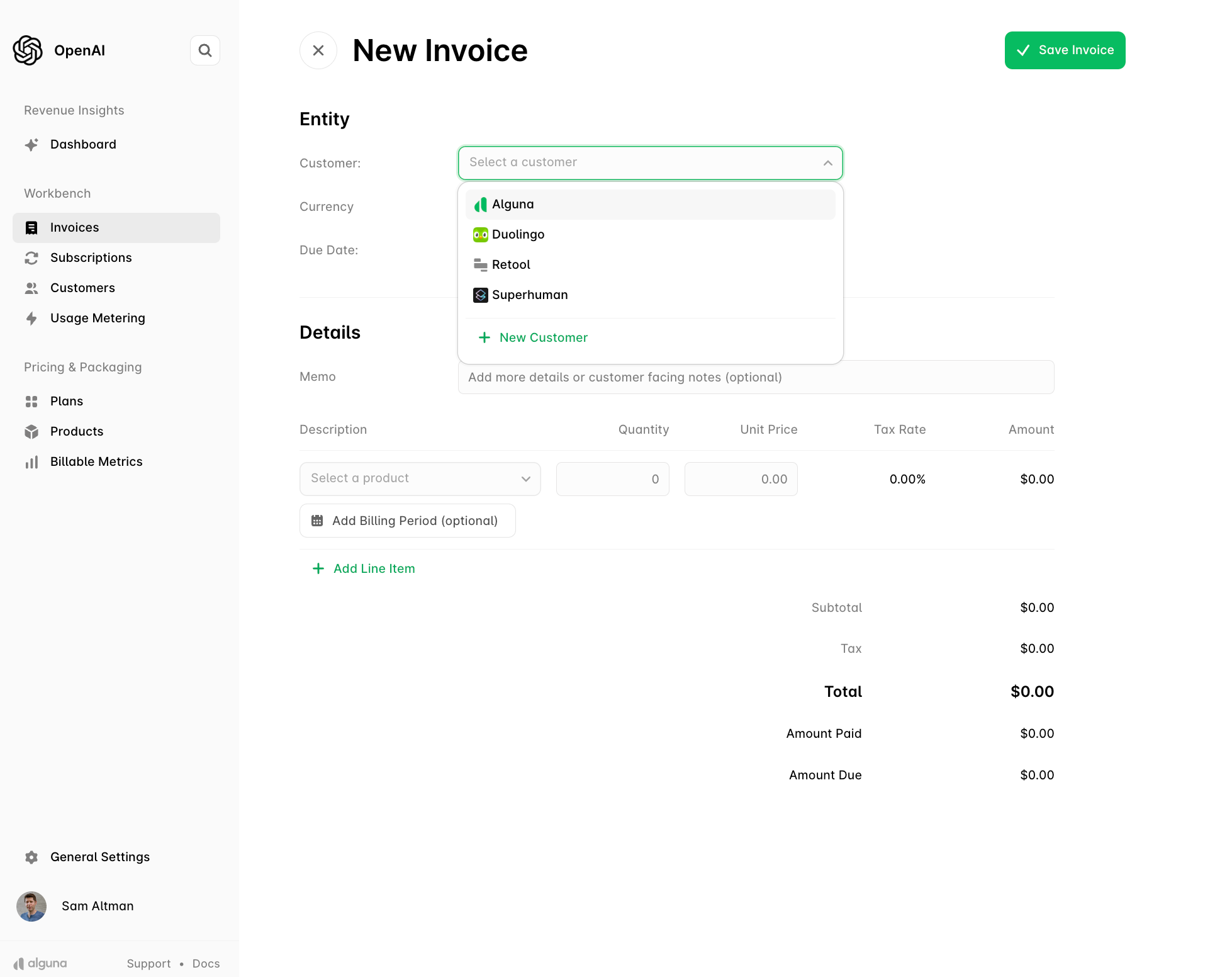
Open Invoices and click New Invoice
2
Select or create the customer
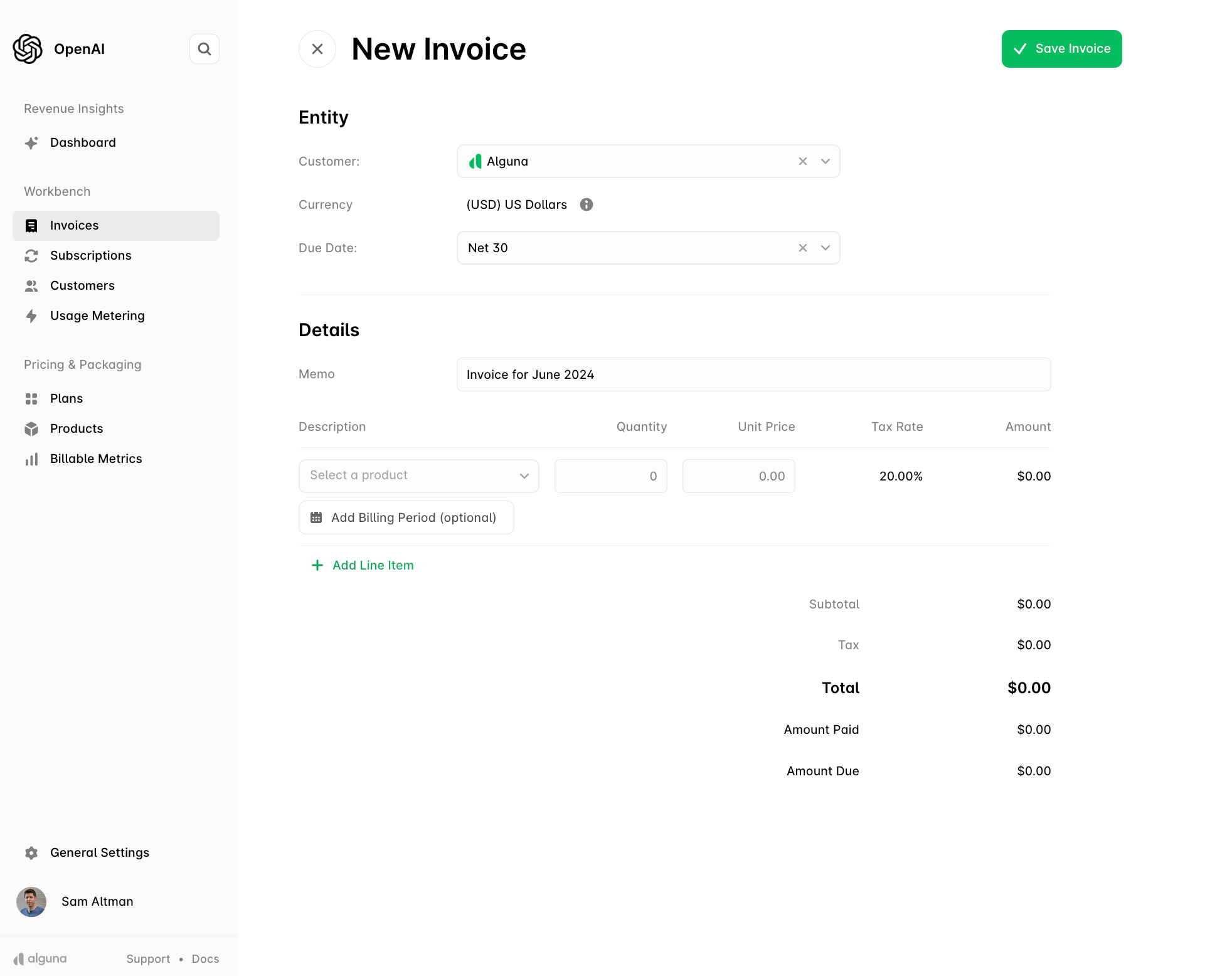
The invoice takes the customer’s currency and payment terms.
3
Set the due date and memo
4
Add line items
Pick products from the catalog or add free-text lines, then set quantities.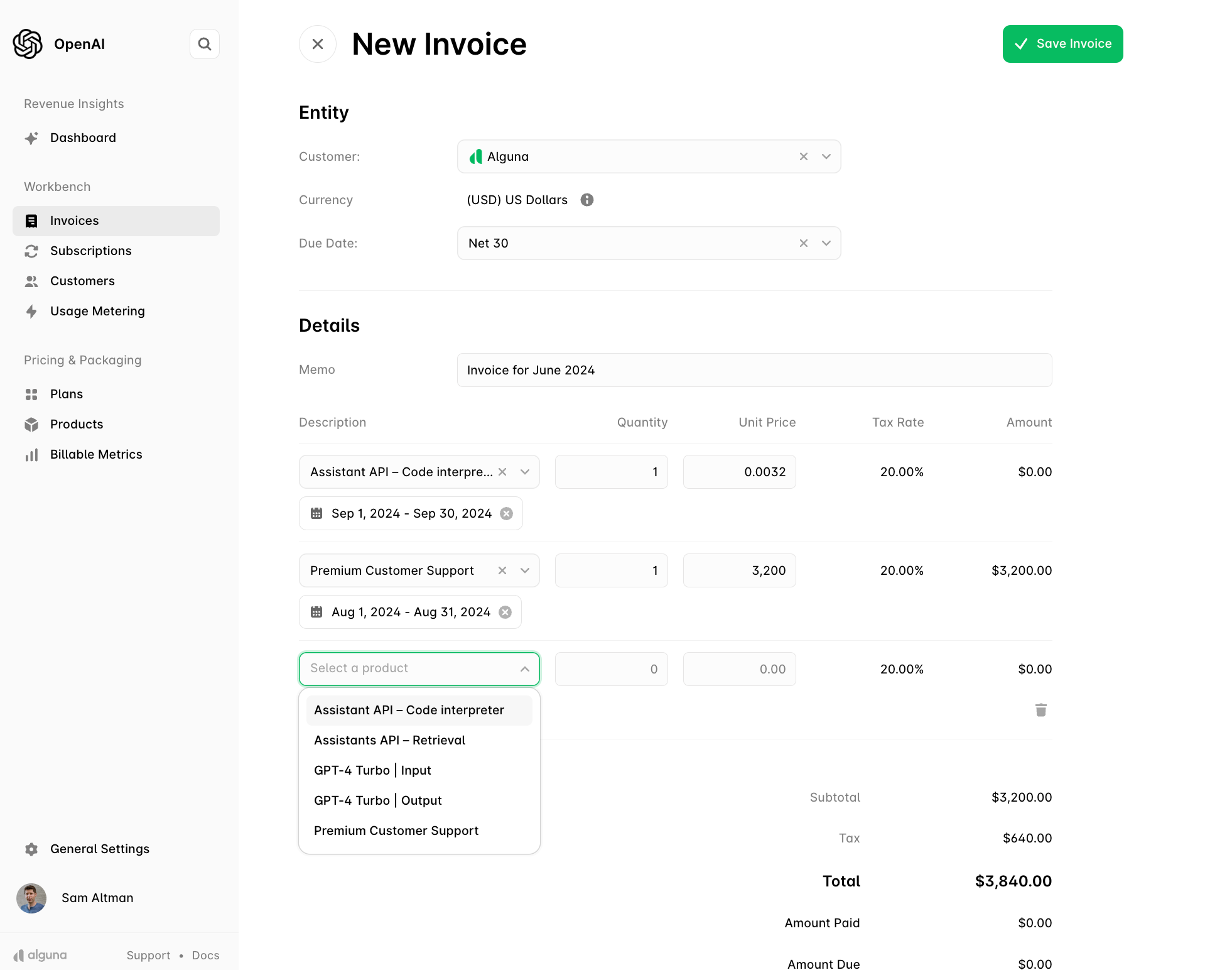
5
Save, review, and issue
Save Invoice keeps it as a draft. Issue Invoice finalizes it and sends it to the customer.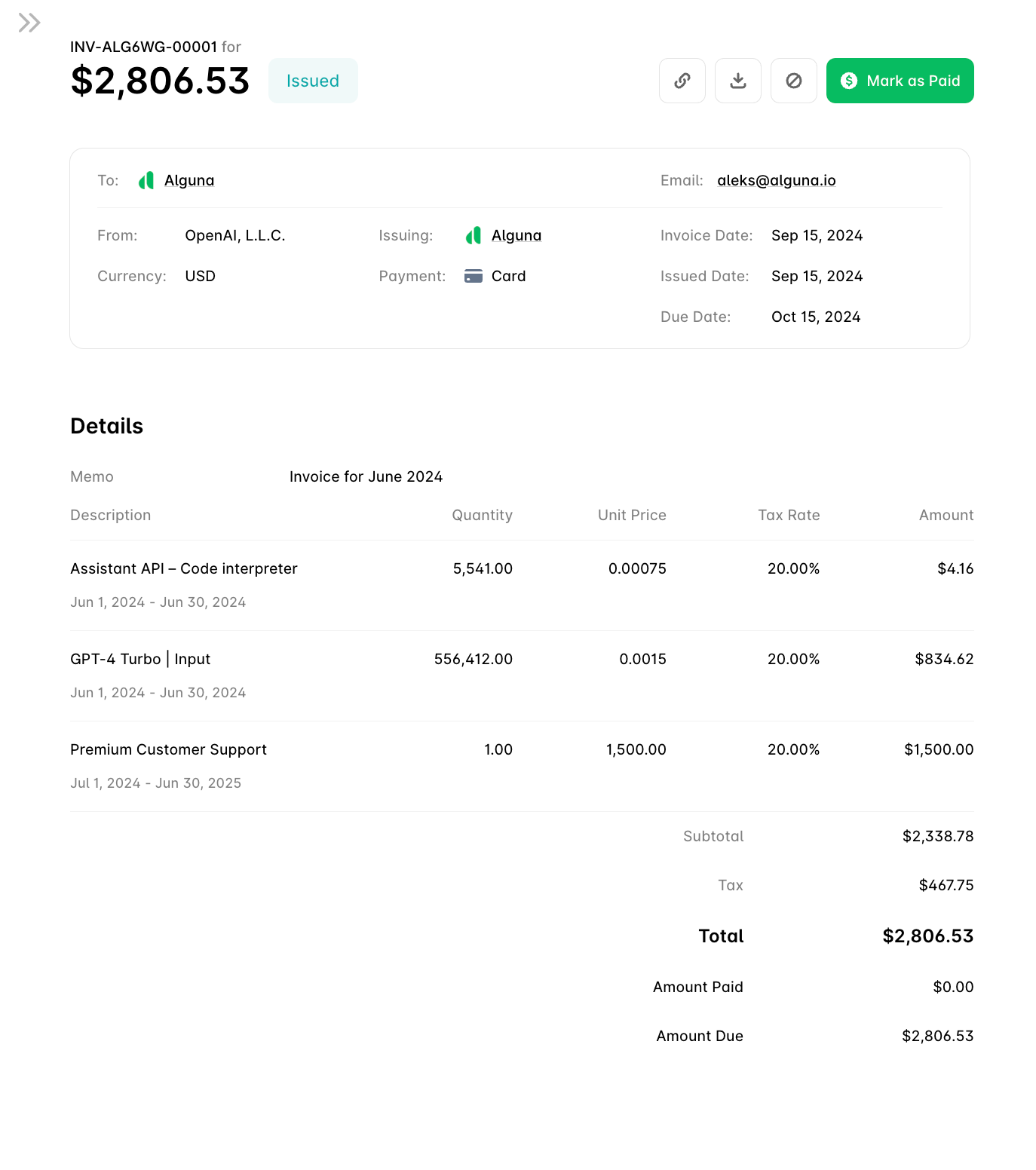
Edit a draft
Update invoice details
PATCH /invoices/{id} updates the memo and purchase order number. See Update an invoice.
Manage line items
Line items are editable while the invoice is a draft. Each line in a response carriesis_editable.
lineitem.deleted webhook.
Download the PDF
GET /invoices/{id}/pdf returns the rendered invoice as application/pdf. If a custom PDF was uploaded for the invoice it is served as-is; otherwise the standard template is rendered with your branding. See Generate an invoice PDF.
Void an issued invoice
POST /invoices/{id}/void withdraws an issued or overdue invoice. Voiding any other status returns 400. void_date defaults to today; it may be backdated but must not be in the future or before the issue date (422). See Void an invoice.
- A draft has never reached the customer — cancel it from the dashboard instead of voiding.
- A paid invoice cannot be voided. Issue a credit note and, if money should go back, a refund.
Record an external payment
When a customer pays outside Alguna (wire, cheque, cash), record it withPOST /invoices/{id}/mark-as-paid. That operation, together with AutoPay and payment methods, is covered in Invoicing Customers.
Webhooks
Payloads are camelCase. Shapes and delivery details are on Webhooks; a handler walkthrough is in the webhooks quick start.
Next steps
Invoicing Customers
Delivery, AutoPay, and recording payments.
Credit Notes
Correct an issued invoice without voiding it.
Tax
Calculate tax up front and issue from the result.
How Alguna Works
Where invoices sit in the quote-to-cash chain.