

active with a cancellation pending (and can be reverted); on the effective date it becomes canceled, which is terminal. Use this page for ending an active subscription; a draft that never started is deleted instead. See Managing Subscriptions for the full status list.
Timing options
On the API,
end_of_term means the end of the current billing period, not the end of the contract. To cancel at contract end, pass the contract end date (from contract.end_date on the subscription) as an explicit date.Cancel via the API
Cancel a subscription (POST /subscriptions/{id}/cancel) requires a reason code and accepts an optional reason_description and effective. When effective is omitted the cancellation is immediate.
subscription.cancelation_scheduled webhook.
Reason codes
Cancel via the dashboard
1
Open the cancellation dialog
On the Subscription Details page, open the three-dot menu (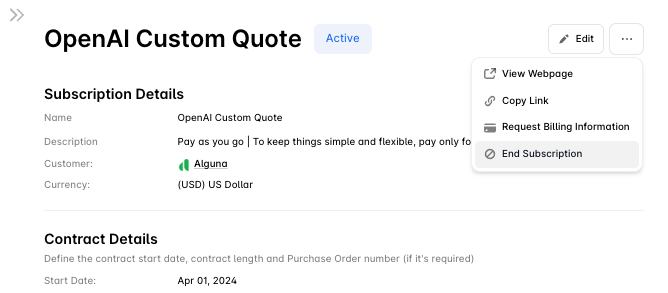
...) in the top-right corner and click End Subscription.2
Choose timing and reason
- When: End of current billing period (default), Specific date, or Immediately.
- Reason: required; one of the codes above, with an optional description.
- Send cancellation email: tick to notify the customer.
3
Decide what happens to unissued invoices
If the subscription has invoices that are generated but not yet issued, choose:
- Do nothing — leave them as they are, to review and resolve manually after cancellation.
- Cancel unissued invoices — void them, then cancel the subscription.
- Issue invoices — issue them to the customer, then cancel the subscription.
4
Confirm
Click End Subscription to schedule the cancellation, or Keep Subscription to back out without changing anything.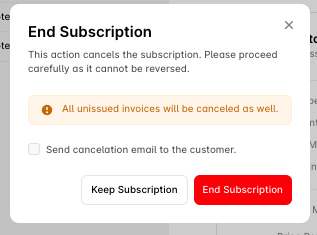
What happens on cancellation
subscription.cancelation_scheduledfires when the cancellation is recorded;subscription.canceledfires when it takes effect. See Webhooks.- Future billing stops from the effective date. Charges already issued stand.
- Entitlements from the subscription stop being returned by
GET /customers/{id}/entitlementsonce the subscription is no longer active; revoke access in your application onsubscription.canceled. - Cancelling at the end of the billing period needs no credit: the customer keeps access to what they paid for. Cancelling immediately ends billing today; review the subscription’s invoices afterwards and issue a credit note if the customer is owed money for an unused advance charge. See Proration.
Reverting a scheduled cancellation
While the subscription is stillactive and the cancellation date has not arrived, open the subscription and choose Revert Cancellation. The subscription returns to its normal contract end date, its billing schedule is regenerated, and subscription.cancelation_reverted fires so downstream systems can undo whatever they did on cancelation_scheduled.
Two limits:
- Once the cancellation has taken effect the subscription is
canceled, which is final. Restarting the customer means creating a new subscription. - Invoices that were voided or issued when the cancellation was scheduled are not restored.
Pausing instead of cancelling
A subscription can be paused rather than ended: billing stops while it ispaused and resumes when it is un-paused. Pausing is done from the dashboard and emits subscription.pause_scheduled, subscription.paused, subscription.pause_unscheduled and subscription.resumed.
Deleting a draft
Adraft subscription has never billed, so it is deleted rather than cancelled: DELETE /subscriptions/{id}. Only drafts can be deleted.
Customer self-service
If the customer portal is enabled and the portal session was created withallow_subscription_cancel set, customers can cancel their own subscriptions from the portal. Leave it off for contracts that should go through your team.
Troubleshooting
Cannot cancel — only anactive subscription can be cancelled. Delete a draft instead; a canceled or expired subscription is already ended.
Customer still has access — check whether the cancellation is scheduled for a future date, and confirm your application revokes access on subscription.canceled rather than on cancelation_scheduled.
Next steps
Managing Subscriptions
Statuses and the subscription object.
Amendments
Downgrade instead of cancelling.
Subscription Lifecycle
The end-to-end walkthrough.
Webhooks
React to cancellation events.