

1
Receive the invitation
The customer receives the quote either as an email invitation from Alguna or as a link you shared directly. The link is unique to that quote. If the quote has an expiry date, it cannot be signed after that date.
2
Review the quote
The signing page shows the full order form: products and quantities, pricing and billing intervals, contract length and start date, any trial, discount, minimum or maximum spend, and the legal terms attached to the quote. Nothing on the page is editable by the customer; changes go back through you.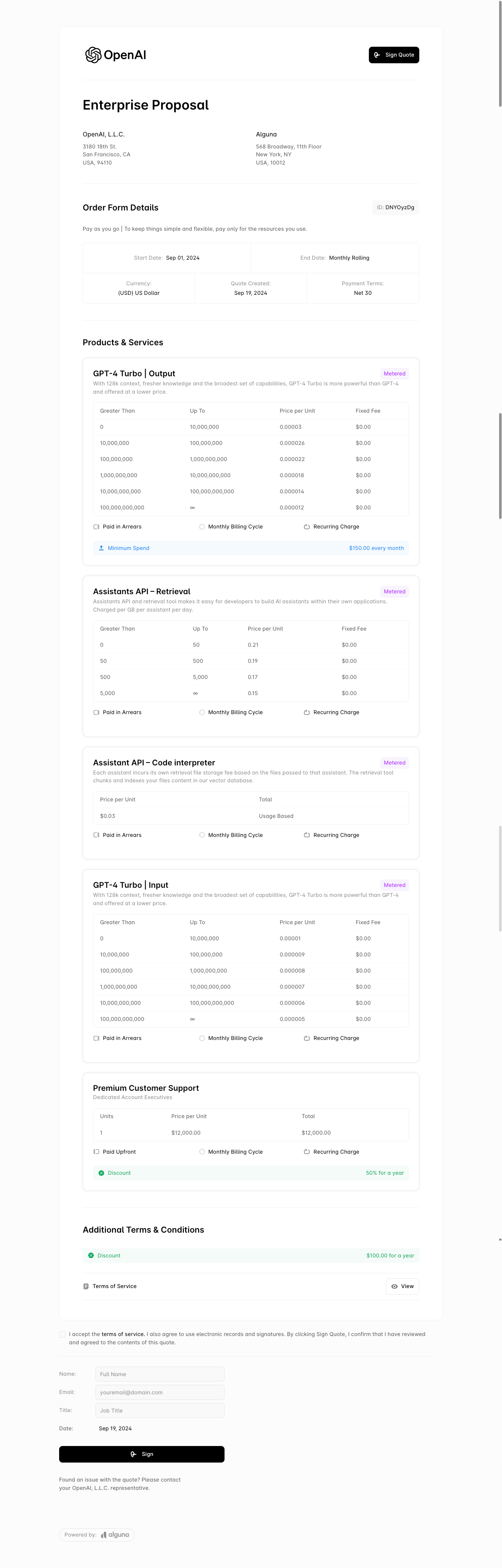
3
Sign
The signatory fills in: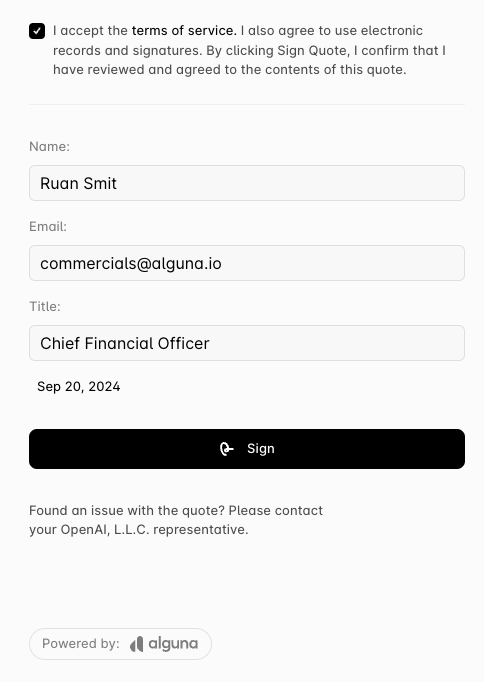
- Name — the signatory’s full name
- Email — where the signed confirmation is sent
- Title — the signatory’s job title
- Date — the signature date
4
After signing
On signature Alguna: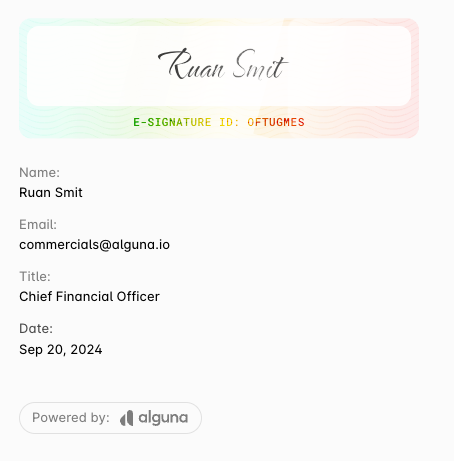
- emails the customer a confirmation that the deal is signed;
- emails your deal owner that the customer has signed;
- renders the signed PDF, which you can download from the subscription or via
GET /subscriptions/{id}/pdf; - moves the subscription to
accepted, and toactiveon the contract start date.
What the customer can do next
Once the subscription is active the customer can see their invoices and manage payment methods in the customer portal. Give them access by creating a portal session from your app withPOST /customer-portal-sessions, or send a portal link from the dashboard.